


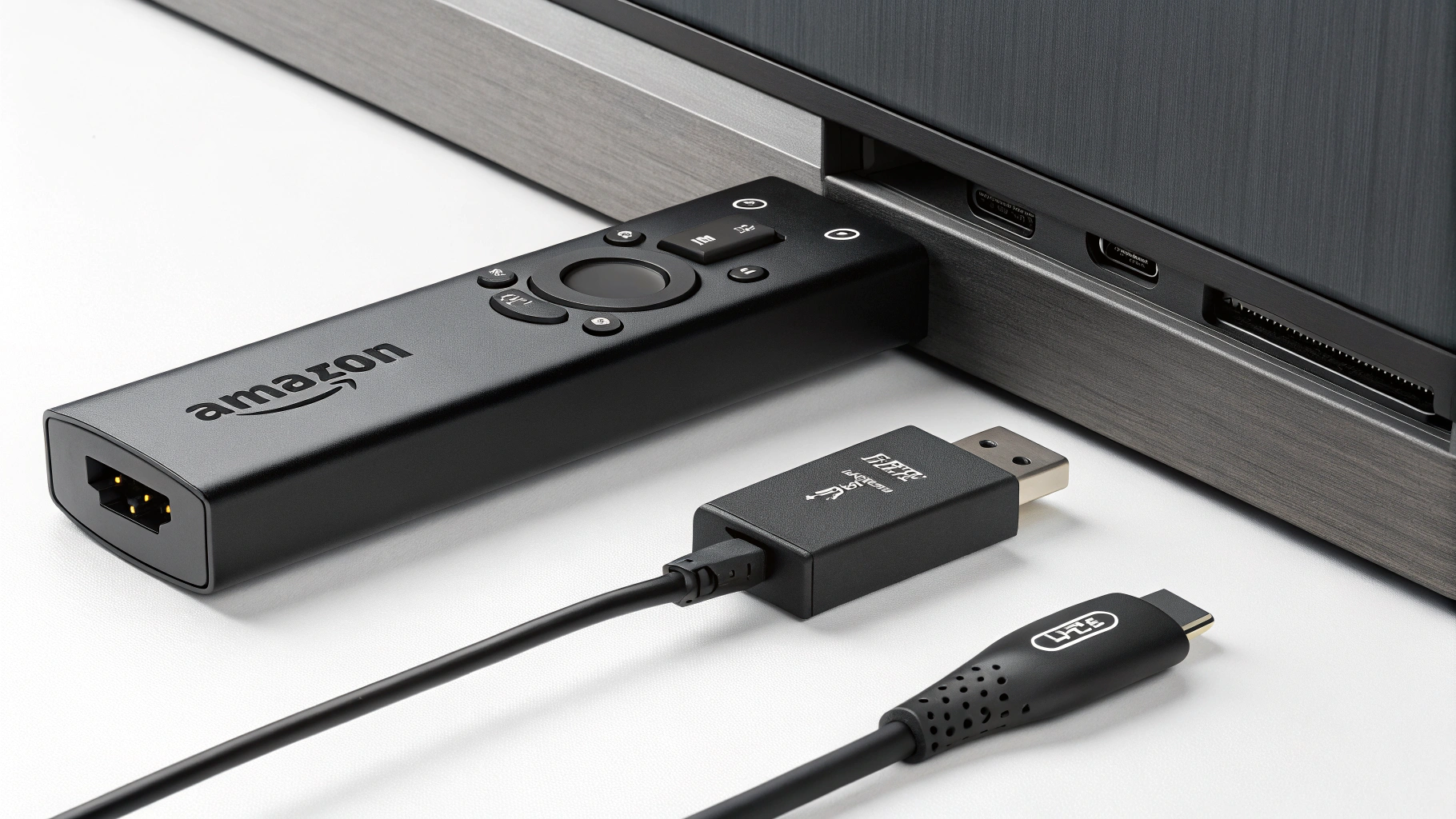
The Amazon Fire TV Stick 4K is one of the most popular streaming devices in 2025. It allows you to watch movies, TV shows, and live channels in ultra-high-definition 4K resolution. Many beginners are curious about what it does, how it works, and if it’s worth buying. This guide explains everything in simple English, step by step.
1. What Is Amazon Fire TV Stick 4K?
The Amazon Fire TV Stick 4K is a small device that connects to your TV via an HDMI port. It turns your regular TV into a smart TV, giving you access to thousands of apps, streaming services, and games.
Key Features
- 4K Ultra HD resolution
- HDR, HDR10+, Dolby Vision support
- Alexa voice remote
- Access to Amazon Prime Video, Netflix, Disney+, YouTube, and more
- Easy setup
Think of it as a smart TV box in a small stick.
2. Why Use Fire TV Stick 4K?
There are many reasons to use it:
- Watch in 4K Ultra HD – Crisp and clear picture quality.
- Affordable – Cheaper than buying a smart TV.
- Easy to use – Plug and play setup.
- Voice control with Alexa – Search shows and control TV hands-free.
- Many apps available – Netflix, Prime Video, Hulu, YouTube, Disney+, and more.
- Portable – Take it anywhere and plug it into any TV with HDMI.
3. Unboxing Amazon Fire TV Stick 4K
When you buy it, you usually get:
- Amazon Fire TV Stick 4K device
- Alexa Voice Remote
- USB power cable
- Power adapter
- HDMI extender
- 2 AAA batteries
- Quick start guide
Everything you need is included.
4. Setting Up Fire TV Stick 4K
Step 1: Connect to TV
- Plug the Fire TV Stick into your TV’s HDMI port.
- Use the HDMI extender if space is tight.
Step 2: Power It On
- Connect USB cable to power adapter.
- Plug it into a wall socket.
Step 3: Switch TV Input
- Change your TV input/source to the HDMI port where Fire Stick is connected.
Step 4: Pair the Remote
- Insert AAA batteries into Alexa remote.
- Follow on-screen instructions to pair.
Step 5: Connect to Wi-Fi
- Select your Wi-Fi network and enter the password.
- Internet connection is required for streaming.
Step 6: Sign in to Amazon
- Sign in with your Amazon account.
- If you don’t have one, create a free account.
5. Using Alexa Voice Remote
The remote has a microphone button. Hold it and say:
- “Play Stranger Things on Netflix”
- “Open YouTube”
- “Rewind 30 seconds”
- “Turn off TV” (if compatible)
Alexa makes navigation easy and hands-free.
6. Fire TV Stick 4K Supported Apps
Some popular apps you can download:
- Amazon Prime Video
- Netflix
- Disney+
- Hulu
- YouTube
- HBO Max
- Spotify
- Pandora
You can also install games and utility apps from the Amazon App Store.
7. 4K and HDR Streaming
Fire TV Stick 4K supports:
- 4K Ultra HD – Sharp and clear picture
- HDR10, HDR10+, Dolby Vision – Rich colors and better contrast
- Dolby Atmos – High-quality surround sound (if your TV/sound system supports it)
This makes it great for movie nights and gaming.
8. How to Install Apps on Fire TV Stick 4K
Steps
- Open the Home screen
- Go to Apps or Search
- Type app name (e.g., Netflix)
- Click Download or Get
- Open the app and sign in
You can also sideload apps, but this is for advanced users.
9. Gaming on Fire TV Stick 4K
Although it’s not a gaming console, you can:
- Play casual Android games
- Use a Bluetooth controller for better experience
- Stream games from services like Amazon Luna
It’s perfect for light gaming.
10. Fire TV Stick 4K vs Fire TV Stick Lite
| Feature | Fire TV Stick 4K | Fire TV Stick Lite |
|---|---|---|
| Resolution | 4K Ultra HD | Full HD 1080p |
| HDR Support | HDR, HDR10+, Dolby Vision | HDR |
| Alexa Remote | Yes | Limited |
| Price | Higher | Lower |
Fire TV Stick 4K is better for 4K TVs, while Lite is for smaller budgets.
11. Tips to Improve Streaming Performance
- Use high-speed internet (5 Mbps for HD, 15 Mbps for 4K)
- Connect Fire Stick to 5GHz Wi-Fi
- Keep Fire Stick cool and ventilated
- Restart occasionally to clear memory
- Update the software regularly
12. Common Problems and Solutions
Problem 1: Fire Stick Not Connecting to Wi-Fi
- Solution: Restart router and Fire Stick, check password
Problem 2: Remote Not Working
- Solution: Replace batteries, re-pair remote
Problem 3: Streaming Lags
- Solution: Use 5GHz Wi-Fi, close background apps
Problem 4: App Crashes
- Solution: Update app or reinstall
13. Parental Controls
Fire TV Stick 4K has parental control settings:
- Set PIN for purchases
- Restrict app downloads
- Limit content by age rating
This is useful if you have kids at home.
14. Voice and Accessibility Features
- Voice navigation with Alexa
- Closed captions and subtitles
- Screen reader for visually impaired
Accessibility features make it easy for everyone to use.
15. Fire TV Stick 4K Price and Value
The price is affordable for most people, usually around $49.99 (may vary by country).
For its features – 4K, Dolby Vision, Alexa remote – it gives excellent value.
16. Pros and Cons
Pros
- 4K streaming with HDR support
- Alexa voice control
- Portable and easy to install
- Many apps available
- Affordable
Cons
- Needs Wi-Fi
- Limited storage for apps
- Can overheat if used long hours
17. Fire TV Stick 4K Alternatives
Some alternatives:
- Roku Streaming Stick 4K
- Google Chromecast with Google TV
- Apple TV 4K
- Fire TV Stick Lite
Amazon Fire TV Stick 4K is still one of the best for Amazon users.
18. How to Update Fire TV Stick 4K
Regular updates keep your device smooth and secure.
Steps
- Go to Settings > My Fire TV > About
- Click Check for Updates
- Install updates if available
Updates improve performance and fix bugs.
19. Fire TV Stick 4K Accessories
- HDMI extender – For tight TV spaces
- Ethernet adapter – For wired internet
- Bluetooth headphones – For private listening
- Game controller – For gaming
20. Final Thoughts
The Amazon Fire TV Stick 4K is a must-have for anyone who loves streaming. It turns any TV into a smart TV, supports 4K Ultra HD, and has a voice remote with Alexa. Whether you want movies, shows, music, or casual games, this device has it all.
Summary
- Easy to set up
- Affordable for 4K streaming
- Works with most apps
- Alexa voice remote makes navigation easy
- Portable and convenient
If you want a simple, powerful, and budget-friendly streaming device, Fire TV Stick 4K is highly recommended.
